Why free trials catch people
A trial starts on a busy day, and the first charge lands weeks later, when you have forgotten the service, the price and where the cancel button lives. Cancel pages are often buried under account, billing or membership settings. That’s why the U.S. Federal Trade Commission’s advice is simple: know the trial’s terms and make a note on your calendar to cancel before the trial ends (FTC consumer advice on free trials).
Step 1: Find the exact first-charge date
Don’t count days in your head. Look for the date in the sign-up confirmation email or on the service’s account or billing page, and note the price that starts on that date. If a trial says “7 days,” check whether the charge happens at the start or the end of day 7.
App Store trials have an extra rule: Apple says to cancel at least 24 hours before the trial ends if you don’t want it to renew (Apple Support). Treat the day before the end date as your real deadline.
Step 2: Set a reminder two days before, plus a same-day backup
Two days gives you room for a weekend, a forgotten password or a cancel page that needs a support chat. The same-day reminder is the safety net. Put both in whatever you actually look at: your phone’s calendar, a reminders app, or a browser tool.
Step 3: Save the cancel link and the price with the reminder
When the reminder fires, you want to act in one tap, not hunt through menus. Paste the cancel or billing page link and the price after the trial into the reminder’s notes. If the terms say how to cancel (online, in the app, by phone), copy that sentence in too.
Step 4: Cancel early if you’re unsure
If you already know you won’t keep it, cancel right away. Many services let you keep using the trial until its end date after you cancel, but some end access as soon as you cancel, so read the terms first. If losing access early doesn’t matter to you, cancelling on day one is the surest way not to be charged.
Where to cancel common types of billing
- App Store (iPhone, iPad): Settings > your name > Subscriptions > pick the subscription > Cancel Subscription. On a Mac, open the App Store, click your name, then Subscriptions. (Apple’s steps)
- Google Play (Android): in the Google Play app, tap your profile icon, then Payments & subscriptions > Subscriptions, pick the subscription and cancel. (Google’s steps)
- Billed directly by the service: sign in on its website and look under Account, Billing, Plan or Membership. If you can’t find a way to cancel, the FTC suggests calling your credit card company and asking them to stop the payments.
Whichever it is, keep the cancellation confirmation email, and check your next card statement to make sure no charge went through.
Doing it in Chrome with Trial Receipt
Trial Receipt is a free Chrome extension from Hall House Labs that does steps 1 to 3 for you.
- On the trial’s sign-up or confirmation page, click the Trial Receipt icon and choose Save a receipt for this page (or select the cancel terms on the page, right-click and choose Save trial receipt for this page).
- It fills in what it can find: the service name, trial length, price after the trial, cancel terms and suggested cancel links. Check the first-charge date, fix anything it missed, and save.
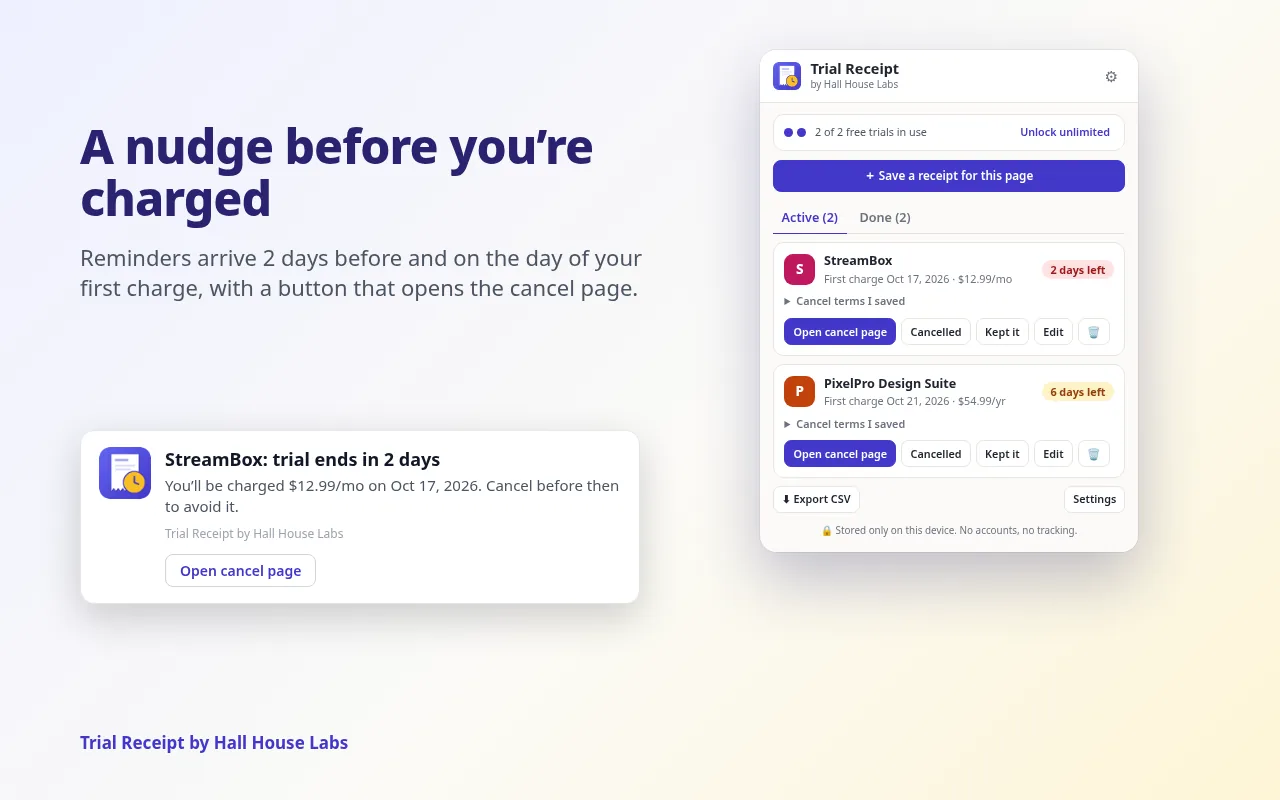
- The popup shows each trial with the days left. You get a Chrome notification 2 days before and on the day of the first charge (at 9 AM unless you change it in Settings), with an Open cancel page button when you’ve saved a cancel link.
- Mark the trial Cancelled or Kept it, and the reminders stop.
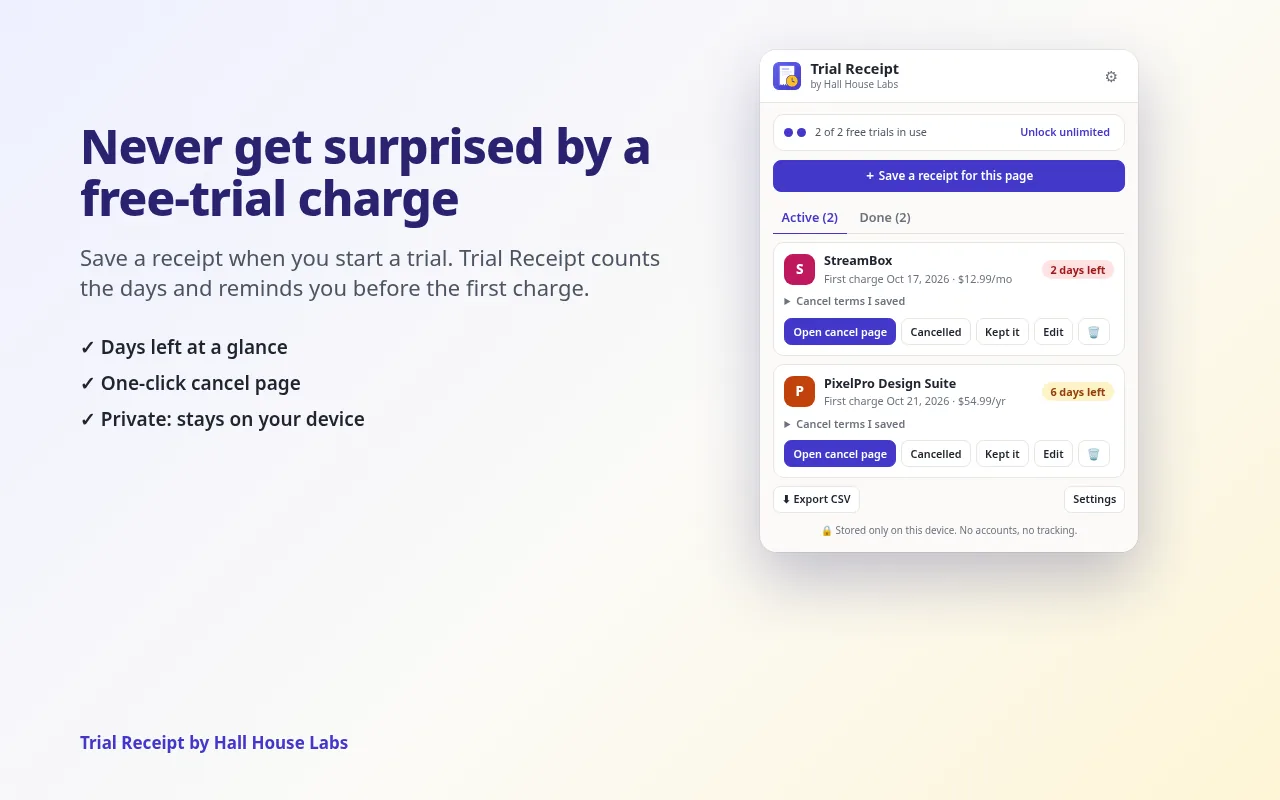
- Your trials are stored only in your browser, on your device. No account, no ads, no tracking. The only network call is a one-time license check with Gumroad if you buy the unlock.
- Reminders use Chrome’s notifications, so Chrome needs to be running. If a reminder time passes while Chrome is closed, it catches up the next time you open Chrome.
- Free for 2 active trials at once. A one-time $4 unlock removes the limit; no subscription.
Service names in the screenshots are fictional. Trial Receipt isn’t affiliated with any service you track.